Importing and Exporting Data with Platform Integrations
Oomiji connects to external platforms so you can import contact data into the Database or export Oomiji contacts to another system. This feature is useful when migrating from or syncing with a CRM, ecommerce platform, email marketing tool, or other business application.
If you are importing contacts from a CSV file instead, see Importing Contacts into the Database.
The integration is powered by a service called MergeLink, which provides the connection between Oomiji and the external platform. You do not need a separate MergeLink account. The MergeLink interface appears within Oomiji when you initiate an integration.
Accessing Platform Integrations
To begin, navigate to Database and click Connect Other Platforms in the toolbar.

The External Platform Integration screen will open. The platform displays a description of what this page does and presents two options: Import from another platform and Export to another platform.

Importing Data from an External Platform
Select Import from another platform and click Import. The MergeLink integration screen will open, showing a list of available platforms organized into two groups.
The first group, Oomiji Recommended, contains platforms that have been tested and confirmed by Oomiji. The second group, Providers, contains additional platforms available through MergeLink.
You can browse both groups or use the search bar and category filters at the top of the screen to find a specific platform. Categories include Accounting & ERP, Analytics, CRM, Database, Ecommerce, Event Management, Forms, Helpdesk, Marketing, and others.
The available platforms and categories may change over time as new integrations are added. The selection screen always reflects the current options.

To begin importing data:
- Click Select on the platform you want to connect to.
-
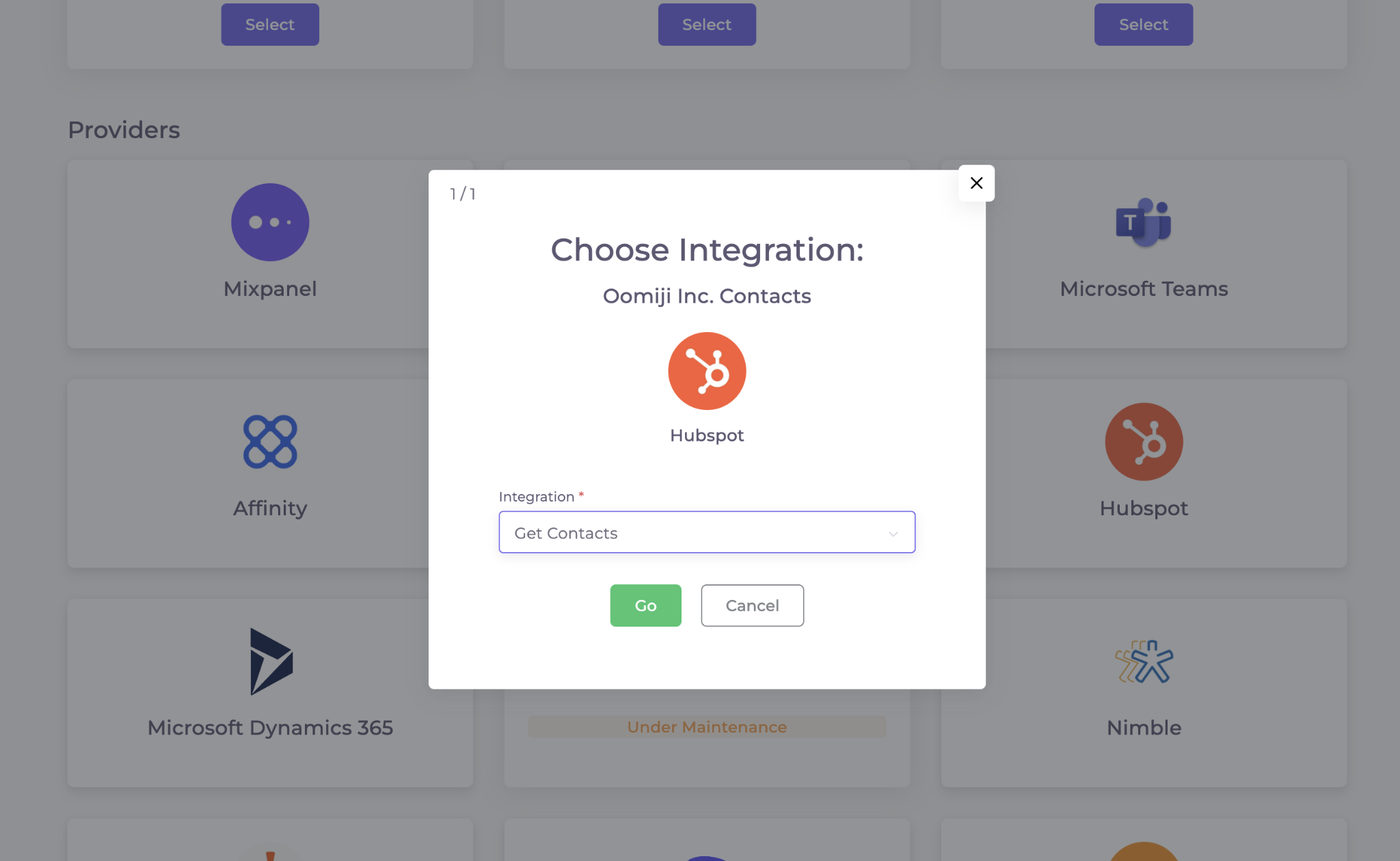
A dialog will appear asking you to choose an integration type (for example, "Get Contacts" for HubSpot). Select the integration type and click Go.
-
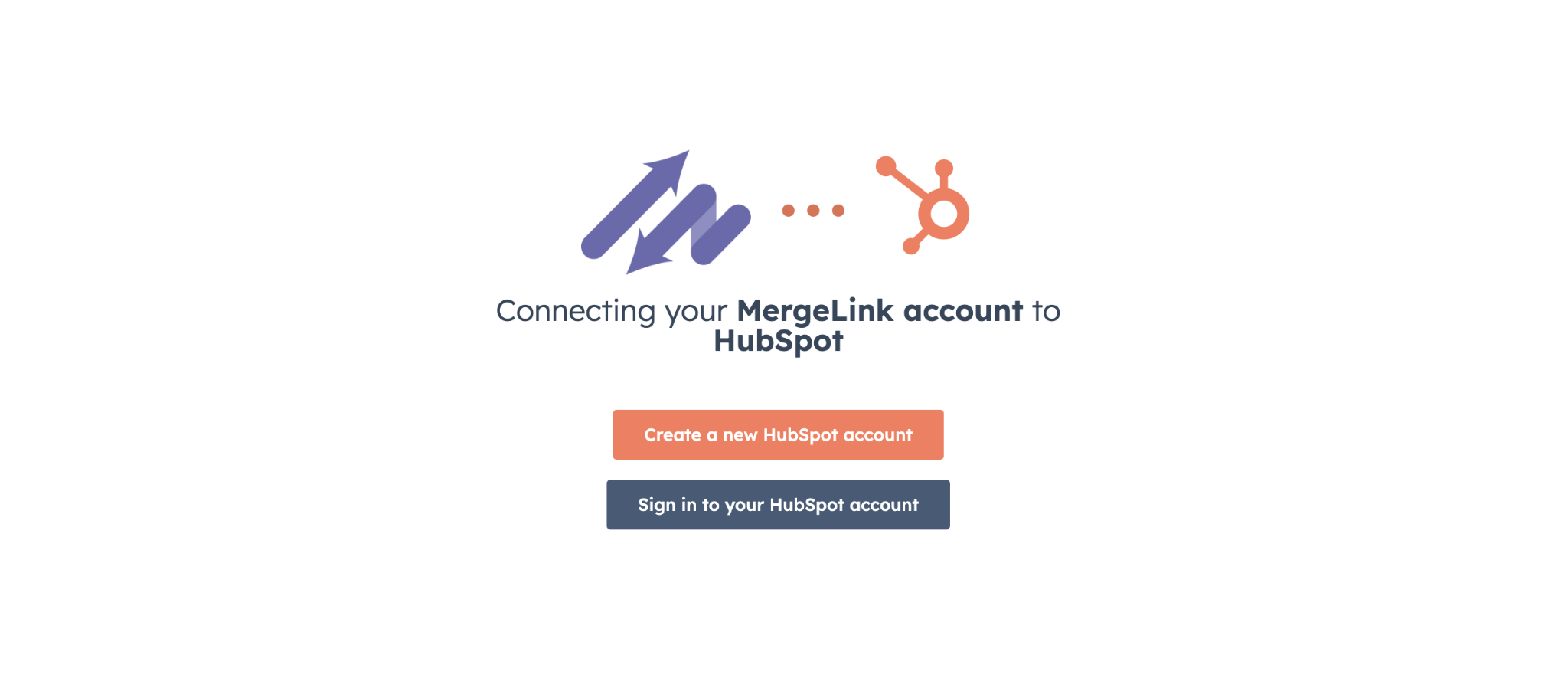
You will be prompted to sign into your account on the external platform. Follow the authentication steps for that platform. (If you do not already have an account on the selected platform, you will need to create one there first.)
- After authenticating, the Field Mapping screen will appear.
For each Oomiji contact field (such as Email, First Name, Last Name, Postal Code), select the corresponding field from the external platform using the dropdown. The Email field is required. If a field from the external platform does not exist or contains invalid data, you can enter a default value in the Default Value field.

Mapping your fields correctly ensures that contact data lands in the right place in your Database. If you need to review or configure your Database fields before importing, see Setting Up Standard and Custom Fields in the Dashboard.
Click Import (or the equivalent button) to begin the transfer.
Contacts imported through a platform integration are added to the Database the same way CSV imports are. Each imported contact must have a valid email address, which serves as the unique identifier across the platform. For details on how Oomiji handles duplicate records and field matching, see Importing Contacts into the Database.
Exporting Data to an External Platform
Select Export to another platform. Two additional options will appear: All contacts and A segment of my contacts.
If you choose A segment of my contacts, a Select Segment dropdown will appear listing your saved segments. You must have already created the segment in the Database before it will appear here. Exporting a targeted segment rather than your full Database lets you share only the contacts relevant to a specific campaign or platform. For instructions on creating segments, see Building and Managing Segments.

What's Next
- Once you have imported contacts from an external platform, you can organize them into segments for targeted outreach. See Building and Managing Segments.
- To review the fields that were imported and configure any additional custom fields, see Setting Up Standard and Custom Fields in the Dashboard.
- If you need to upload a suppression list before sending any communications, see Manage Your Suppression List.