Embedding a Conversation Question in Email
After reading this article, you will be able to take a conversation you built in Insights and embed it inside a mailing template in Interaction, so that respondents can answer a question directly within the email they receive.
This workflow spans two sections of the platform. You build the conversation in Insights, then embed it in a mailing template in Interaction. The result is an email where respondents can tap or click an answer without leaving their inbox, and their response is recorded in the Insights dashboard and, if you mapped the question to a Database field, written to their contact record.
When to Use an Email Conversation
Email conversations are designed for quick, single-question interactions that you want to deliver inside an existing email communication. They work best when you want to collect one piece of information from a large number of contacts without asking them to leave their inbox and visit a separate page. Common use cases include:
- NPS scores: Embed a Rating question so contacts can submit a score in one click. This is the most common use of email conversations.
- Primary Interest collection: If Primary Interest is missing for a portion of your Database, embed a Radiogroup question in a newsletter asking contacts to select their interest. This fills in a gap that improves your segmentation without requiring a separate outreach. For more on how Primary Interest works, see Primary Interests: Foundational to Segmentation.
- Event attendance: A Yes/No question asking "Will you attend?" gives you a quick headcount directly from a newsletter or invitation email.
- Filling missing Database fields: Any field you want to populate across your contact list (region, preference category, role) can be collected through an email conversation question mapped to the corresponding Database field. If you are already sending a newsletter, embedding a question is an efficient way to enrich your data without a dedicated campaign.
If you need to ask more than one question, collect open-ended responses, or use branching logic, use a Conversation for Web instead and share its link in your email. For details on the differences between the two types, see the Understanding Conversation Types section of Creating and Configuring Conversations.
Before You Start
You need a completed, saved, and activated email conversation in Insights before you can embed it. If you have not built one yet, follow the Creating a Conversation for Email section of Creating and Configuring Conversations, then return here.
Make sure your conversation is activated. On the Insights dashboard, click the three-dot menu next to the conversation and verify its status shows Active. A deactivated conversation will not capture responses even if the embed code is placed in a sent email. Once respondents start receiving the email, there is no way to retroactively collect responses from a period when the conversation was inactive.
Embedding the Question in a Mailing Template
Open or Create a Mailing Template
- Navigate to Interaction.
- Click +Create New Email or Edit Your Emails depending on what you want to add the question to. If you already have a newsletter template you use regularly, you can copy it and add the question to the copy.
Select the Conversation and Copy the Embed Code
- In the Conversation dropdown at the top of the template editor, select the email conversation you created. Email conversations will appear with "(email)" next to their name. Conversations without that label are web conversations and will embed as a link rather than as inline HTML.


- Click Copy Embed HTML. This copies the HTML code for your question to your clipboard. There is also a Copy Link button next to it, which copies the conversation URL instead. For email conversations, you want the embed HTML, not the link.

Add the HTML Block to Your Template
- In the template editor, look at the content blocks on the right side. Under the bottom row, find the HTML block.
-
Drag the HTML block into your email layout where you want the question to appear.
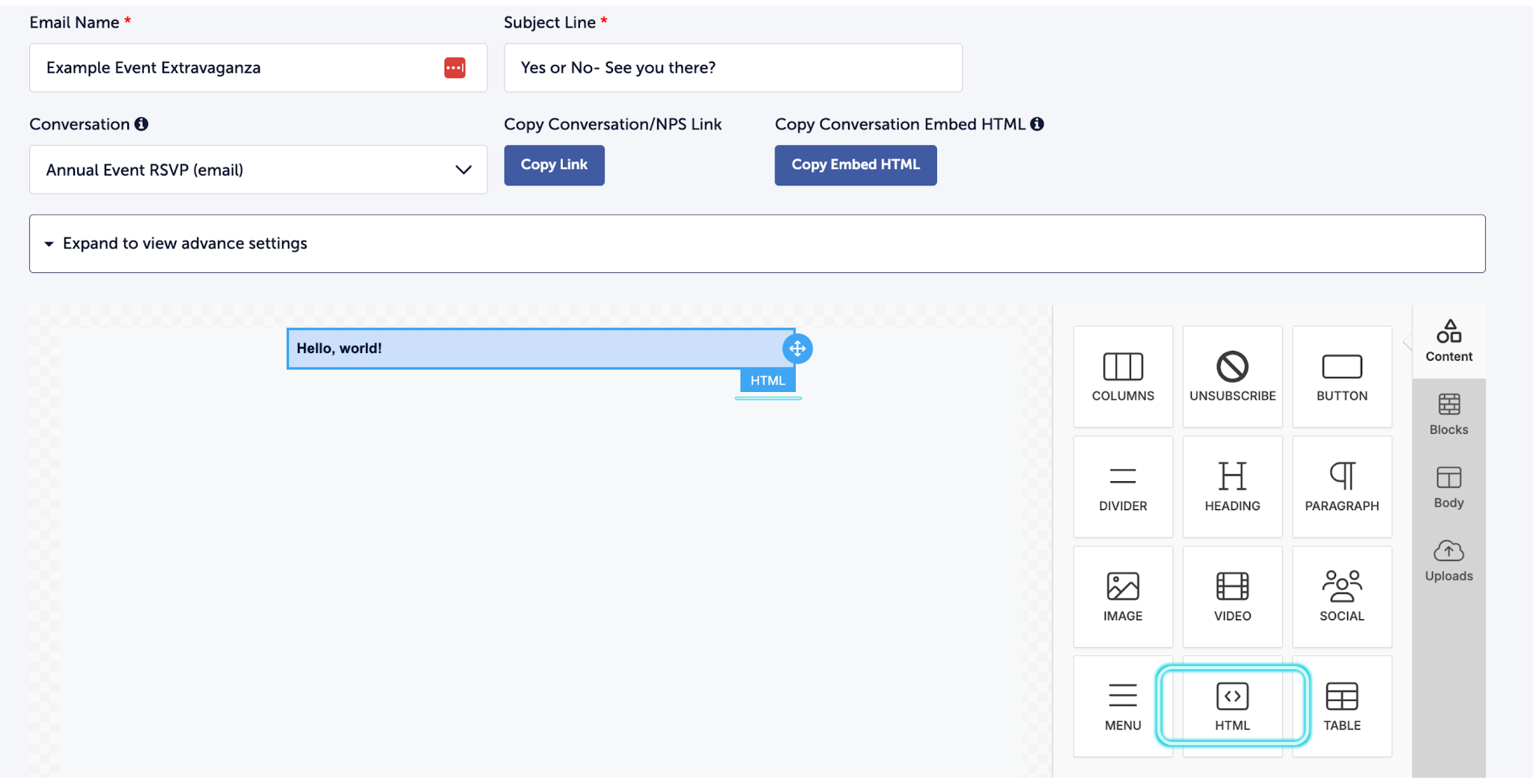
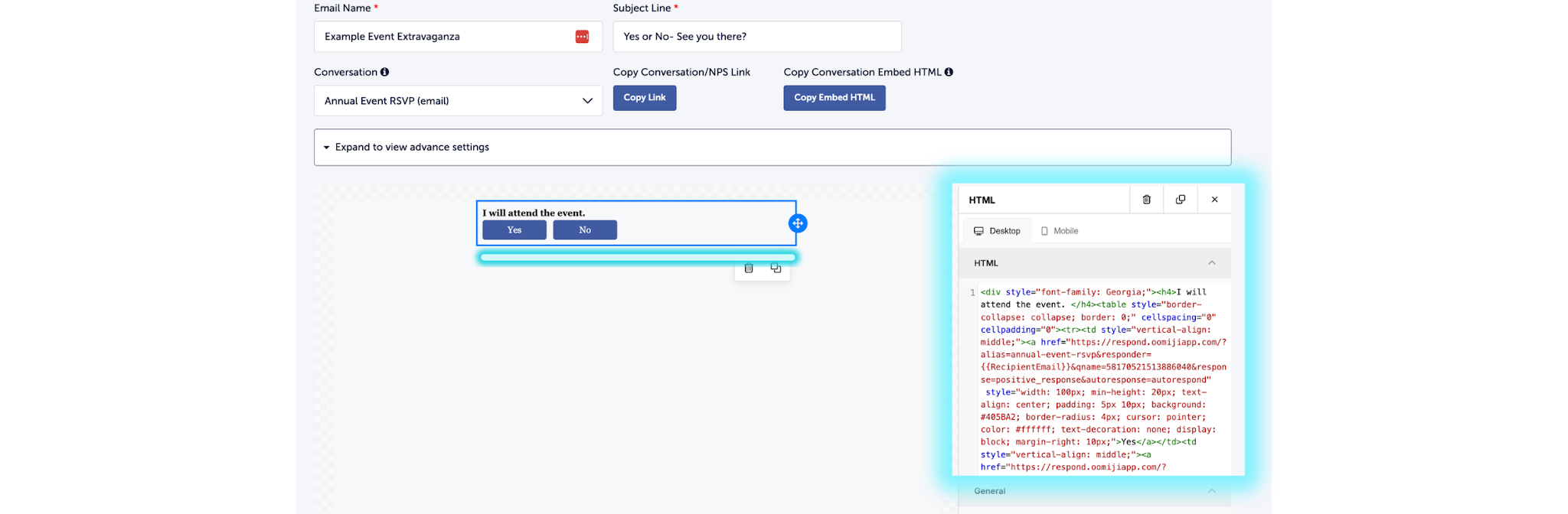
- The HTML block will contain placeholder text. Select all of the placeholder text, delete it, and paste the embed code you copied in the previous step.
-
A preview of your question will appear in the email editor. You can verify that the question text and answer options display correctly. If you need to adjust the visual appearance of the question, you can edit the HTML in the embedded code directly.
-
Save and Test
- Save your template.
- Send a test email to yourself and any colleagues who need to review it. To add multiple test recipients, separate their email addresses with commas in the test send field.
- Open the test email, verify the question renders correctly, and submit a test response. Then check the Insights dashboard to confirm the response was captured.
Important: Do not forward test emails to colleagues for review. Forwarding an email breaks the HTML rendering because each email client encodes HTML differently, and forwarding passes the already-decoded version through a second round of encoding. The result will appear broken. Instead, add each reviewer's email address to the test send field so they receive their own direct copy. This is a limitation of email technology, not Oomiji.
Before sending the email to your full contact list, return to the Insights dashboard and select Remove Responses from the three-dot menu next to the conversation to clear your test data.
Where Responses Are Recorded
Once your email is sent and respondents begin answering, their data appears in three places:
- Interaction: Email engagement metrics (opens, clicks) are recorded in the Interaction section alongside your other mailing data.
- Insights: The question responses are recorded in the Insights section, where you can view completion rates, response breakdowns, and export the data.
- Database: If you mapped the question to a Database field (for example, mapping a Primary Interest question to the Primary Interest field), the respondent's answer is written directly to their contact record. You can view these values on the Database dashboard. For more on how field mapping works, see Choosing and Configuring Question Types.
This three-way data flow is one of the advantages of using email conversations to collect information. A single question embedded in a routine newsletter simultaneously enriches your Database, feeds your Insights analytics, and tracks engagement in Interaction.
Limitations of Email Conversations
Email conversations are constrained by what email technology can support. These limitations apply to all email platforms, not just Oomiji:
- Single question only. You cannot embed multiple questions in one email. If you need more than one question, use a Conversation for Web and include the link in your email instead.
- Single interaction per response. The respondent can perform one action in the email (tap a rating, select one radio option, click Yes or No). If you use a Checkbox (select multiple) question, the respondent can only select one option inside the email. To select additional options, they will be redirected to complete the question in a web browser.
- No open-ended questions. Email conversations do not support text input fields. If you need written responses, use a Conversation for Web.
- No conversation logic. There is no Conversation Logic tab for email conversations. Because there is only one question, there is no flow to control.
- Appearance varies by email client. The embedded question will render slightly differently depending on whether the recipient uses Gmail, Outlook, Apple Mail, or another client. Always send test emails and check rendering in the email clients your audience is most likely to use.
- Forwarded emails break rendering. If a recipient forwards your email to someone else, the embedded question will not render correctly for the forwarded recipient. Each person who needs to see the email must receive their own direct copy through the platform.
Linking a Web Conversation in Email Instead
If your needs exceed what an email conversation can do, you can still distribute a web conversation through email. In the mailing template editor, the Conversation dropdown shows both types. Web conversations (listed without "(email)" next to their name) provide a Copy Link button that copies the conversation URL. Paste this link into a button or text block in your email template. When the recipient clicks it, they open the full conversation in their browser.

This approach gives you access to all question types, multiple pages, branching logic, and open-ended questions that feed into AI analysis. The tradeoff is that the respondent must leave their email to participate, which typically produces lower response rates than an embedded question.
What's Next
- To build the email conversation that gets embedded, see the Creating a Conversation for Email section of Creating and Configuring Conversations.
- To view responses once they begin coming in, see Navigating the Insights Dashboard.
- To understand which question types are available for email conversations and how to configure them, see Choosing and Configuring Question Types.
- To learn how mapped responses update contact records in the Database, see Setting Up Standard and Custom Fields in the Dashboard.